Setting up an endpoint
To receive webhooks with Hooklistener, create an endpoint in your dashboard, copy its public URL, and configure your provider to send events there. Open the endpoint to inspect captured requests, then use request history and replay to investigate problems and test your handler after a fix.
Prerequisites
Before you begin, make sure you:
- Are logged into your account
- Navigate to the Endpoints section in the left menu (or access it from the Dashboard)
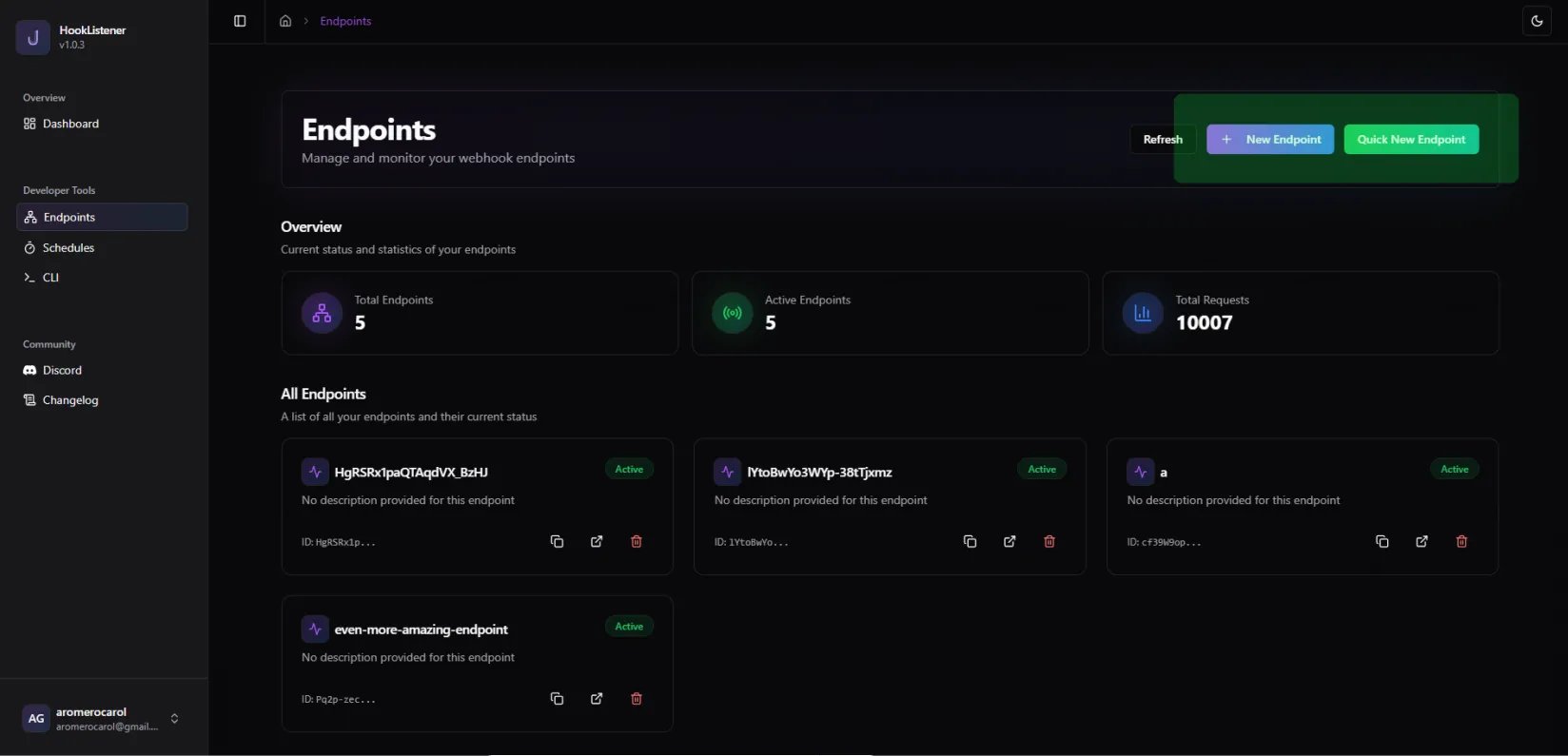
Creating a New Endpoint
You have two options for creating endpoints:
1. Quick New Endpoint
This is the best option if you just want to obtain an endpoint quickly, without the need for configuration. With this option:
- An endpoint is automatically created
- Default settings are applied
- A name is automatically assigned
- The new endpoint appears at the top of your endpoint list

2. Custom New Endpoint
Choose this option when you need more control over your endpoint setup. You can customize:
- Name and description
- Body content
- Status code
- Content type
- Forwarding endpoints
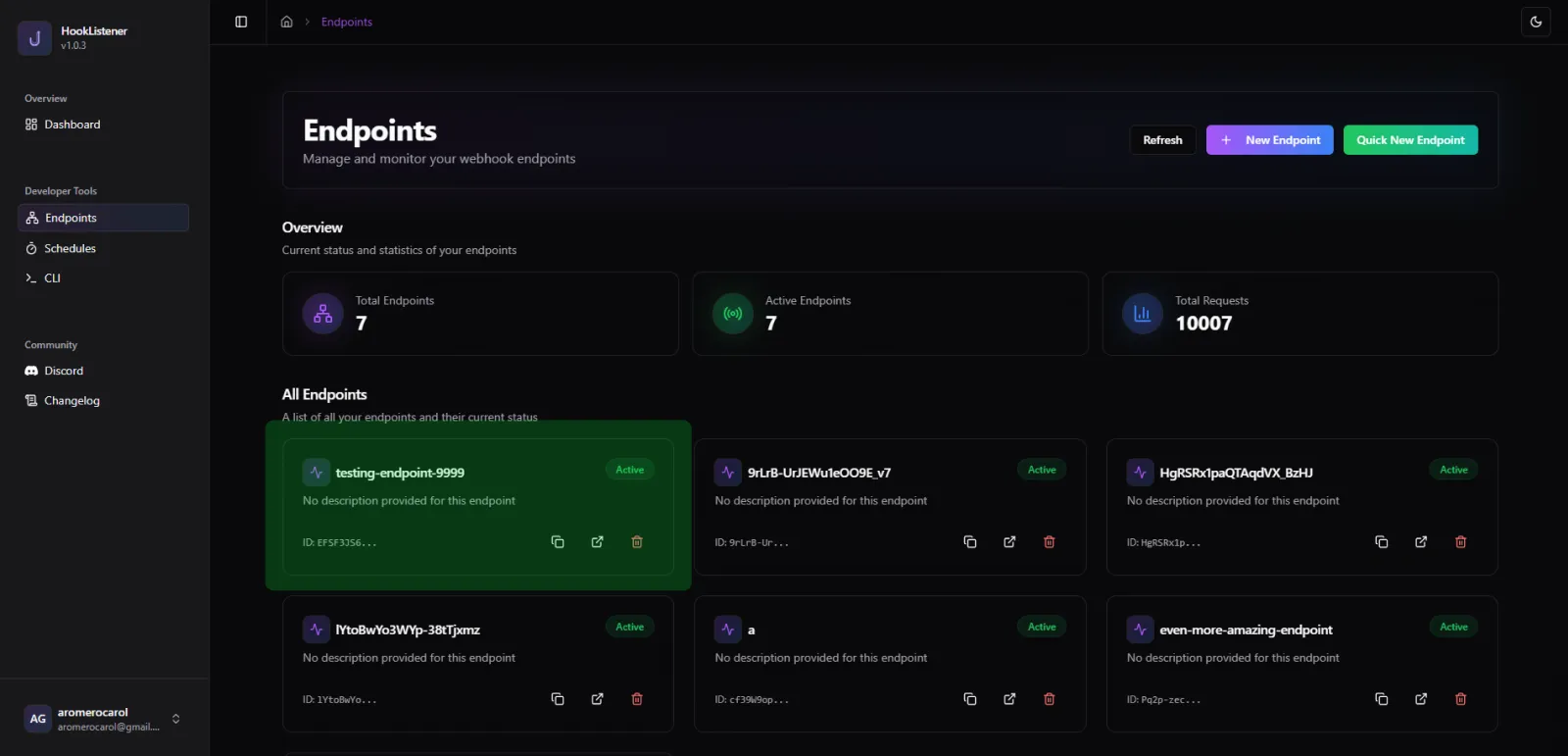
Managing Your Endpoint
Once your endpoint is created, you can:
- View all details by clicking on the endpoint
- Copy the URL directly from the endpoint box
- Delete the endpoint using the trash icon
Send and inspect your first request
Before connecting a provider, send a small test request to confirm that you copied the correct URL. Replace the placeholder below with the full URL from your endpoint. This sample uses invented test data and does not require a provider account.
curl --request POST 'YOUR_ENDPOINT_URL' \
  --header 'Content-Type: application/json' \
  --data '{"event":"endpoint.test","reference":"setup-check"}'
Open the endpoint and find the incoming POST request. Check that its content type is JSON and that the body contains the event and reference values you sent. If it is missing, compare the URL in your command with the dashboard and check the curl output for a connection error. A response from the capture endpoint confirms receipt there; it does not confirm processing by your application.
Connect a provider and choose a useful test event
Add the copied endpoint URL to your provider's webhook settings and select the event types your integration handles. Use a test account or sandbox where available. For a payment integration, inspect an event your payment handler expects; for a repository integration, trigger a relevant repository action. Follow the Stripe webhook guide or the GitHub webhook guide for provider-specific setup.
Give custom endpoints names that identify the provider and environment, so test traffic is easy to recognize later. Choose custom response settings only when your test needs a particular status code, body, or content type. For example, a deliberately unsuccessful response can help you observe how a sender reports failed delivery. Restore the intended response before your next test.
Turn request history into a repeatable debugging case
When an event produces an unexpected result, find the captured request and inspect its headers and body before changing your code. Compare the event type, field names, and record identifiers with what your handler expects. Request history helps you return to the actual input instead of reconstructing it from memory. Available retention depends on your plan; check the current retention options if you need to revisit requests later.
After fixing the handler, replay the captured request to a test destination and verify the result in your application. Use test data and account for duplicate event IDs so the replay does not repeat a real action. Provider signature checks may reject an old timestamp or a changed payload; follow that provider's signing requirements when testing. The capture-to-replay workflow explains how these steps fit together.
Forward webhooks to a local handler
If your next step is running application code on localhost, use the CLI tunnel setup. It provides a public URL that forwards requests to your local server. Use the URL printed by the tunnel command for that workflow, include your handler's path in the provider configuration, and keep both processes running. Check your local logs as well as the provider's delivery result to confirm that the intended route received and processed the event.
Important Note
Remember that deleting an endpoint is permanent and cannot be undone. All data collected and associated with the endpoint will be permanently removed.